
Friends, if you are a YouTuber and want to go live on YouTube, today I will show you how to do it using the 'Go Live India' app. You may have noticed people streaming 10-minute clips or pre-recorded videos as live streams on YouTube. In this article , I will explain how you can use 'Go Live India' to stream your videos on Youtube and facebook for for 24 hours, 18 hours, or even longer?
In this guide, we will explain How to Live stream pre-recorded video on YouTube Using Go Live India , how to connect your YouTube channel, upload a video, add a thumbnail, set the loop duration, and start or schedule your live stream.
What is Go Live India?
Go Live India is a streaming platform that allows creators to stream content on platforms such as YouTube and Facebook.
It can be useful for YouTubers who want to run pre-recorded videos as live streams for extended periods.
Depending on your selected plan, you can use options such as extended live streaming and continuous or loop-based streaming.
Step 1: Download the Go Live India App
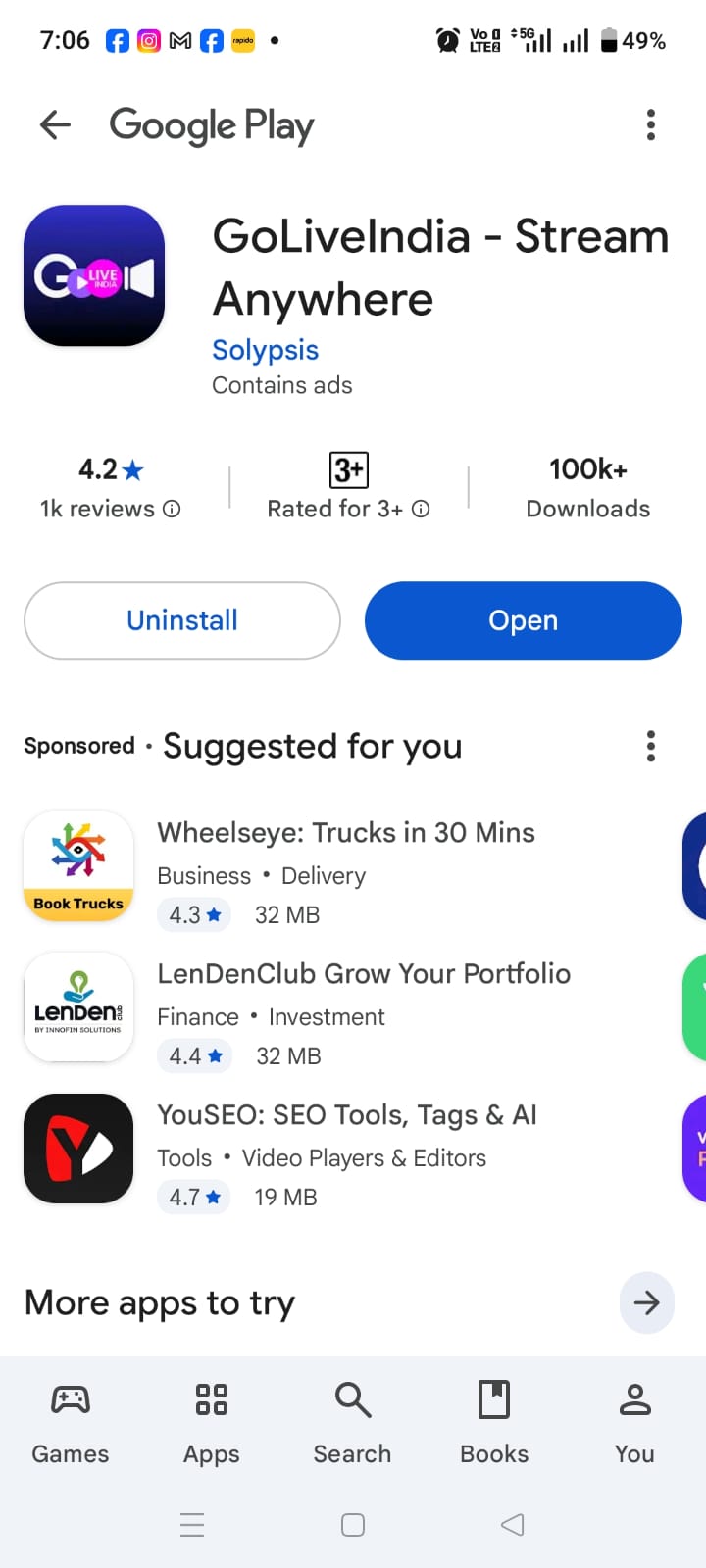
First, go to the Play Store and search for "Go Live India." You will see the app listed as "Go Live India - Stream Anywhere." I already have it installed, but if you don't, please download and install it. Once installed, you will see the app's home page
Step 2: Sign In to Go Live India App
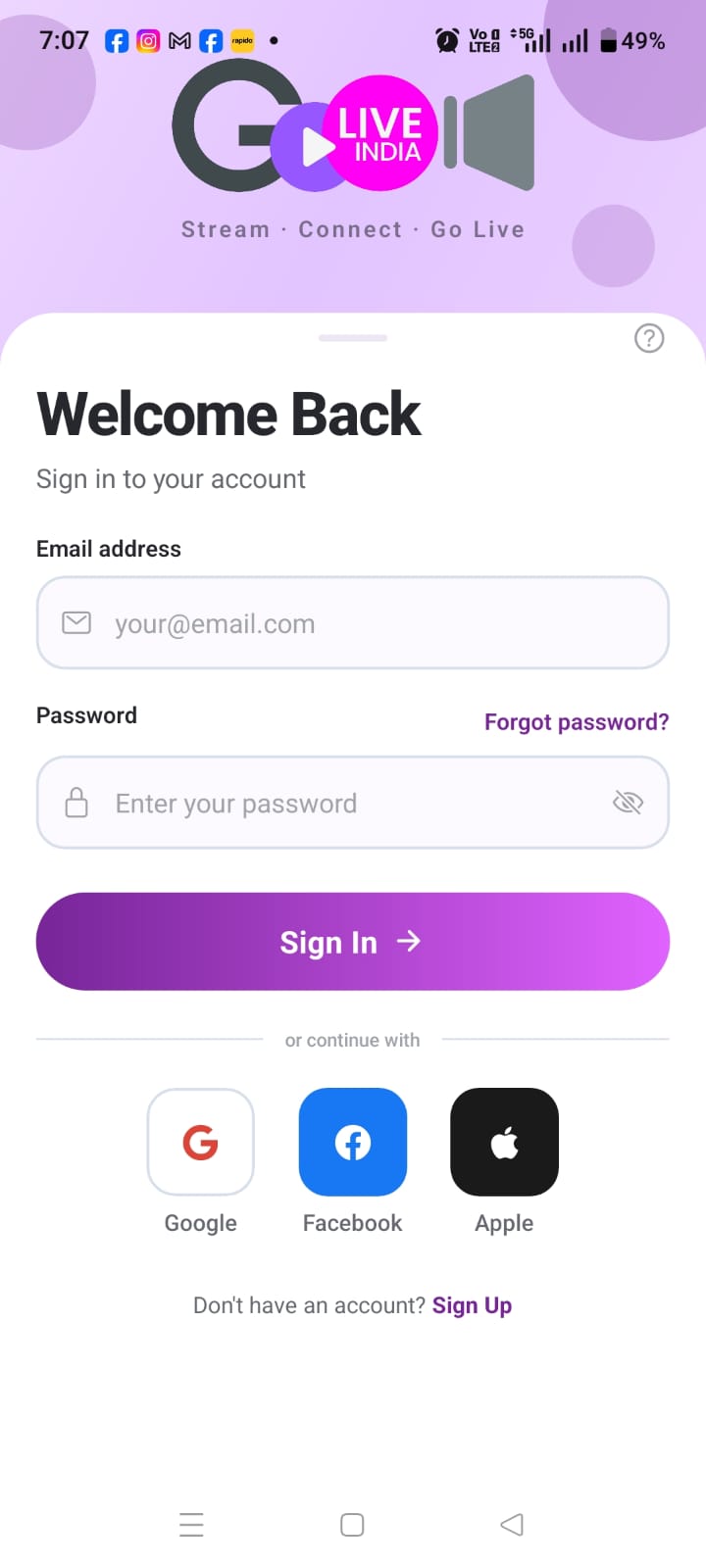
After opening the application. click on the profile icon to find the login section. You can sign in using your Google (Gmail) account—or Facebook or Apple, as these options are also available. I will sign in using Google and then demonstrate how to go live on YouTube.
Step 3: Connect Your YouTube Channel
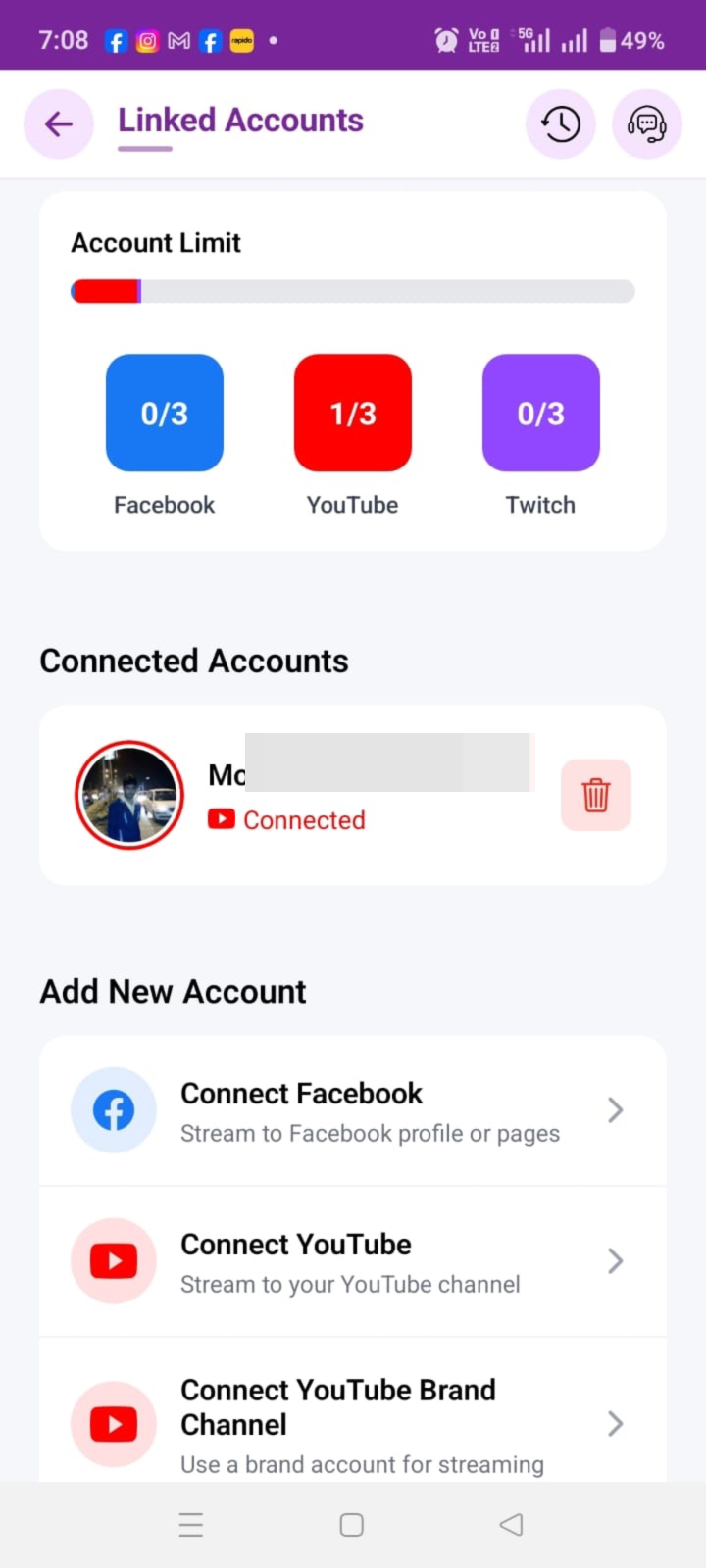
A common issue users face after signing in is that their YouTube channel isn't automatically linked to the 'Go Live India' app. So, the first step is to link your channel.
After signing in:
- Open your Profile.
- Go to Linked Accounts.
- Select YouTube.
- Add your YouTube account/channel.
- Complete the authorization process.
- Allow all the required permissions.
Here, you can connect the accounts you wish to use—such as Facebook or YouTube. Make sure to grant all the necessary permissions when linking your account; otherwise, the live stream won't start.
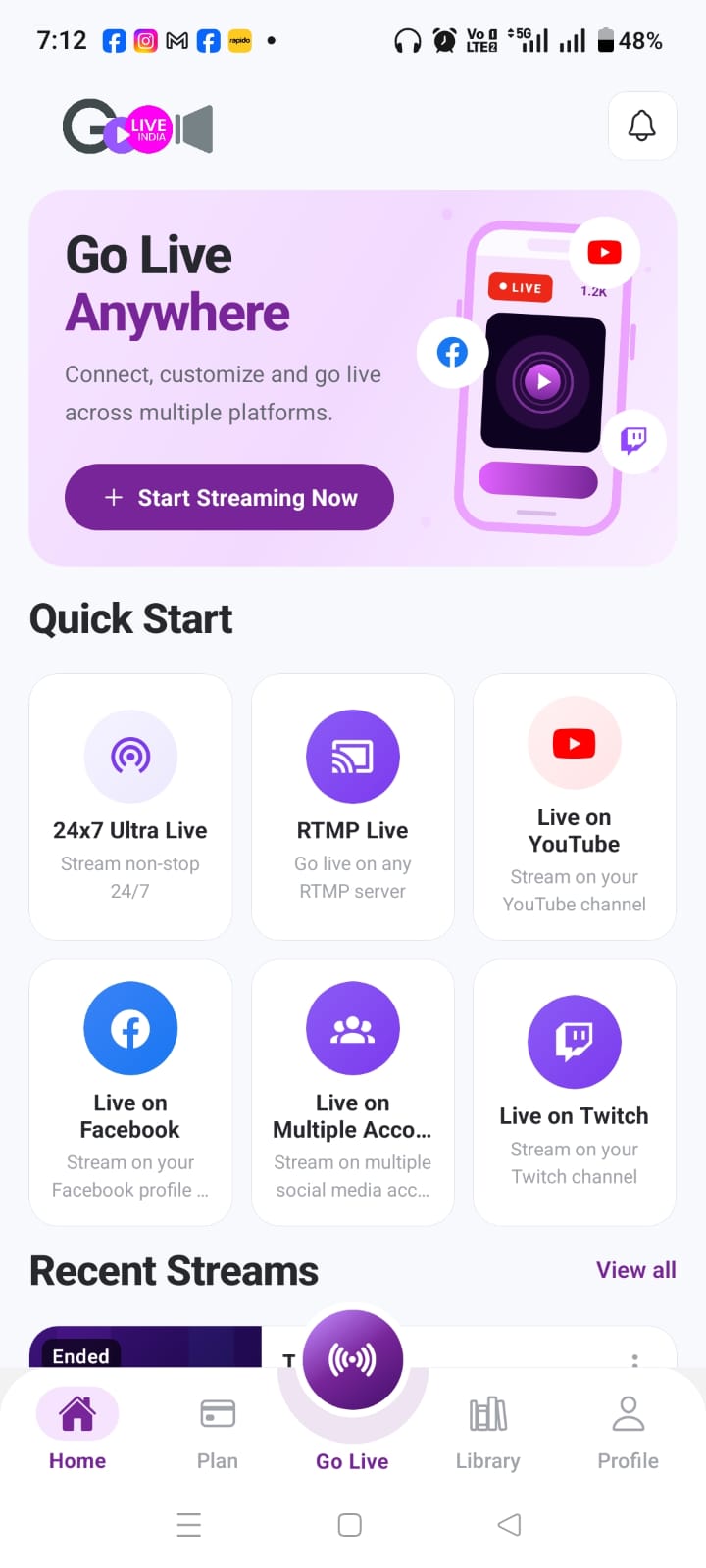
Step 4: Select “Live on YouTube”
Once your YouTube channel is connected, go back to the main section of the app.
You will see different streaming options.
There are options like '24 Ultra Live' and 'RTMP Live', but my main focus right now is 'Live on YouTube'. So, click on 'Live on YouTube'.
Step 5: Upload Your Pre-Recorded Video
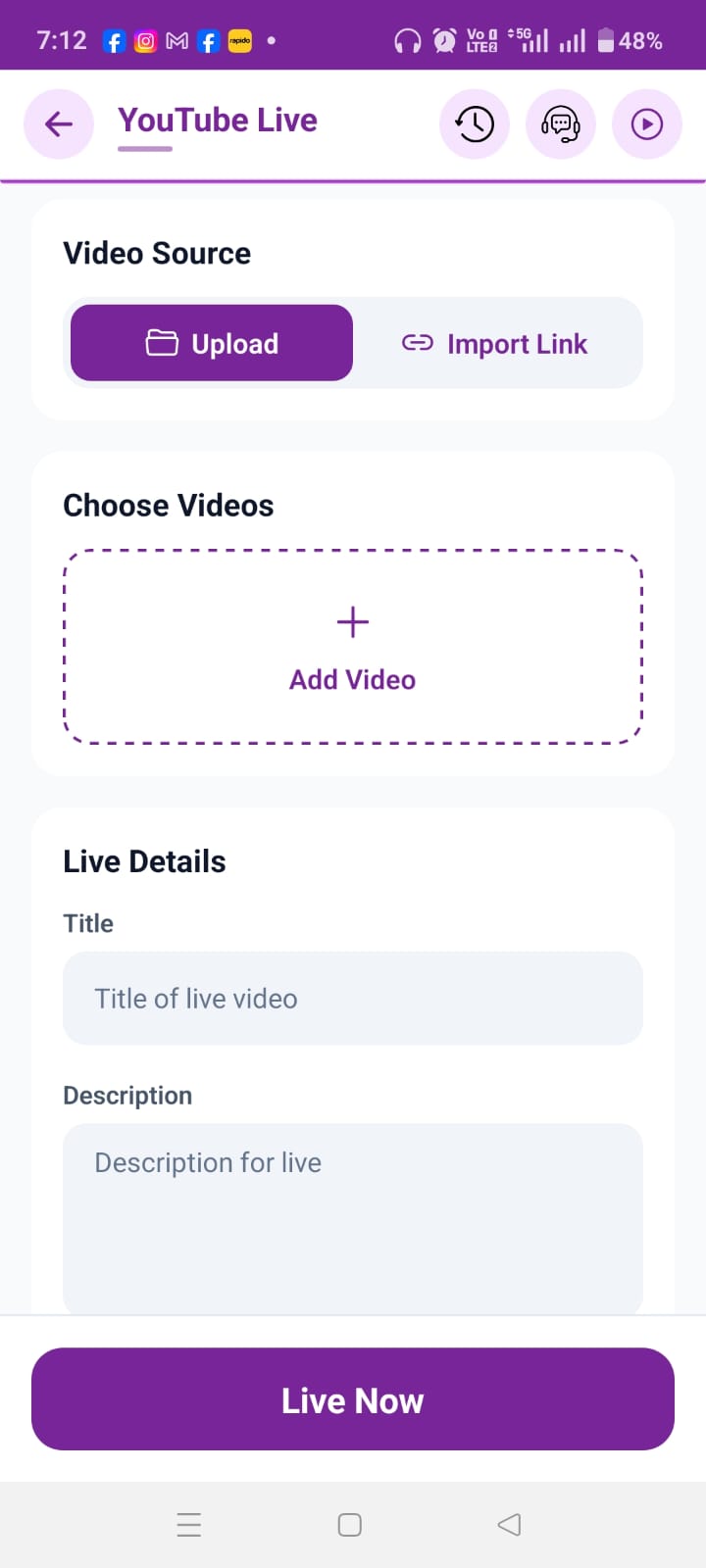
If you want to stream a video that is already saved on your phone, select the Upload Video option.
Then:
Tap Add Video.
Select the video from your phone's gallery.
Wait for the video to upload.
Once the upload is complete, your video will appear in the streaming section.
The upload time will depend on the size of your video and your internet connection
Step 6: Add Your YouTube Title and Description
After the video appears, enter the title and description you want to use for YouTube.
You can write the title and description according to your preference.
For example:
Title:
How to Go Live on YouTube Using Go Live India
Description:
Learn how to stream pre-recorded videos on YouTube using Go Live India. Follow this step-by-step guide to connect your YouTube channel, upload your video, set the loop duration, and start your live stream.
Step 7: Select Your YouTube Channel
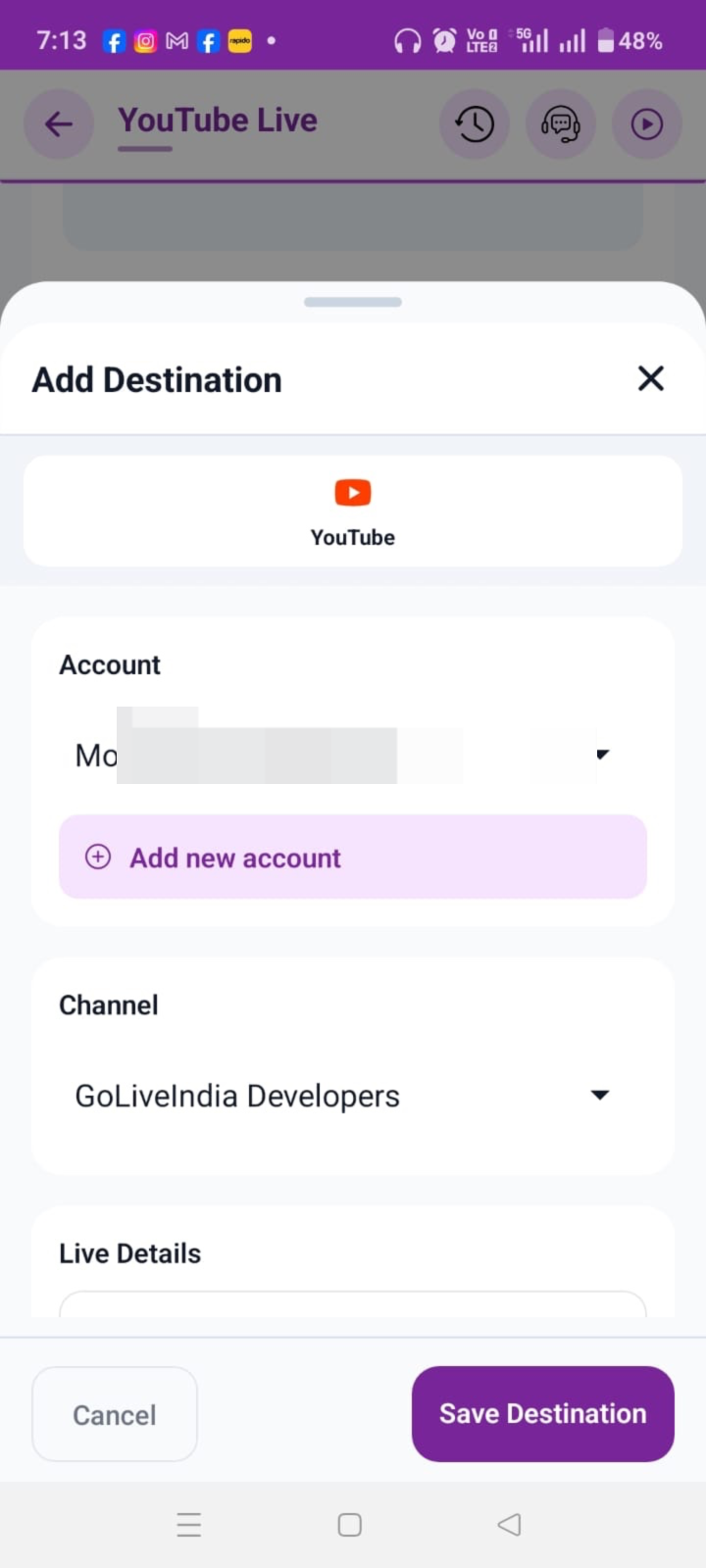
Next, decide which channel you want to link or stream the video to. Click on that option.
If you are using this for the first time, you will be given an option to 'Add Account' to link your channel to the application.
You will see an 'Add New Account' option here; select your account. (If it isn't selected automatically, select it yourself). You will see that the title and description you entered earlier appear here as well. Now, it asks for a thumbnail, so add one—but remember, the thumbnail size must be less than 2 MB.
Step 8: Set the Video Loop Duration
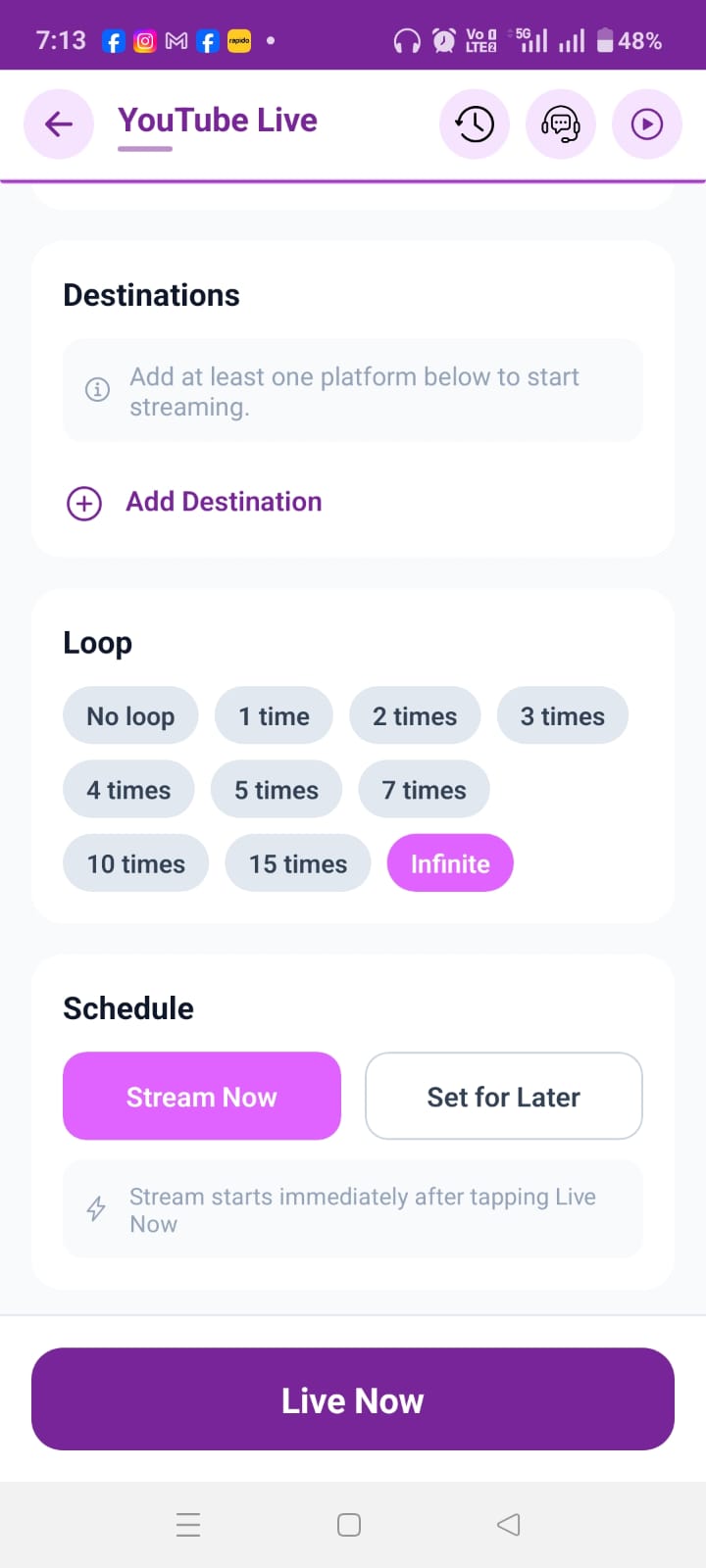
One of the useful features of Go Live India is the ability to repeat your video.
The Loop option determines how many times your video will be played during the live stream.
For example, if you have a 10-minute video and set it to play twice, the content can run for approximately 20 minutes.
You may also see an Infinite option.
With Infinite selected, your video can continue looping according to the limits and duration supported by your selected Go Live India plan, until you stop the stream or the applicable streaming limit is reached.
This makes the feature useful for creators who want to run longer live streams using pre-recorded content.
Step 9: Start Your YouTube Live Stream
Once everything is ready, review your:
Video
Title
Description
YouTube channel
Thumbnail
Loop settings
Then select:
Stream Now / Live Now
Your live stream will begin after the required processing and connection steps are completed.
You can then check your YouTube channel to confirm that the stream is live.
The 'Set for Later
option allows you to upload the content now but schedule it to go live at a later time. For instance, if you want to stream a video in two hours but won't be connected to the network then, you can simply schedule it. Your video will automatically go live at the appointed time.
However, since I want to go live right now, I will click on 'Live Now.' You will see the stream go live on YouTube shortly.
Final Words
So, friends, today I have explained How to Live stream pre-recorded video on YouTube
In upcoming articles, I will cover other topics, such as how to go live on Facebook, how to stream on multiple YouTube channels, and how to stream simultaneously on both YouTube and Facebook.


